Test Tools and Functionality
As part of your UCAT preparation, we recommend familiarising yourself with the test tools and functionality, as this can save valuable time on test day.
The features below are explained in more detail in the Tour Tutorial and included in our Practice Tests.
Workstation and Equipment |
At the test centre, you will be allocated a desk space with a PC, monitor, standard QWERTY keyboard and mouse. You will also be given an A4 'laminated notebook' and pen for note taking. See the FAQs below for more details. |
Navigation and selecting answer options |
You can use the mouse to navigate the test and select answers.
If there is a letter underlined, a keyboard shortcut is also available. The Alt key can be used with the underlined letter to carry out a function e.g. Use Alt + N to navigate to the next screen or question.
We recommend becoming comfortable using both the mouse and keyboard, as some actions (e.g. answering drag and drop questions) can only be carried out using the mouse.
Use the Tour Tutorial and Practice Tests to explore more aspects of navigation including the scroll bar and 'Navigator' tools. |
Calculator |
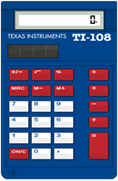
A basic onscreen calculator is available for Decision Making and Quantitative Reasoning. The calculator cannot perform scientific functions.
|
Timer and Progress Indicator |
Each subtest and instruction screen is timed separately. A Countdown Timer and Progress Indicator is displayed in the top right of the screen.
When less than 5 minutes remain in a section, the timer turns yellow.
If time expires, a pop-up message will prompt you to continue. Press ‘OK’ straight away or you will lose time from the next section. |
Flag for Review |
You may want to flag a question to review it if you have time left at the end of the subtest. The review screen is explained in the Tour Tutorial. |
Screen Magnification |
Use Ctrl +/- to zoom in or out. Use Ctrl 0 (zero) to reset to 100%. |
Colour Scheme |
If desired, you can change the colour scheme of your test e.g. white on black. |
Help Button |
If you need a brief reminder of important information during the test, this is available from the 'Help' button. Please note that the Countdown Timer will continue to run while accessing this information. |
Test Tools FAQs
Keyboard shortcut troubleshooting
-

Prepare
Find out more -
Practice Tests and Question Banks
These example questions and practice tests are representative of the live test. We recommend you use these official materials to prepare for your test. Work through the Tour Tutorial before you start, as it explains how to use the onscree...
Find out more